-
Click Synchronize Excel Room Data Sheet
 .
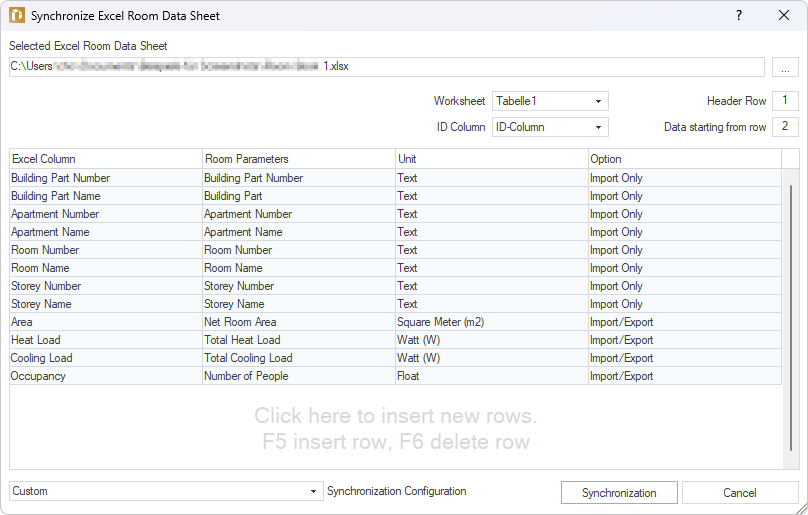
.The dialog Synchronize Excel Room Data Sheet opens.
-
Check the settings for Worksheet, ID Column, Header Row, and Data From Row.
-
Add missing parameter assignments in the Room Parameters column if needed.
-
If you want to transfer additional room parameters to the Excel Room Data Sheet, click on an empty row, enter the name for the Excel Column in the newly added row, and select the desired Room Parameter by clicking on
 .
. -
Select the desired entry from the Synchronization Configuration drop-down list. If you select Custom, you can assign the desired setting for each parameter by clicking
in the respective row. -
Click on Synchronize.
If you have created additional rooms in LINEAR Building, a message appears asking in which direction the differences in the building structure should be applied.
-
Click on Transfer Building Structure from Building to Excel Room Data Sheet if you want to transfer the rooms with the corresponding data to the Excel Room Data Sheet.
The adjusted data was synchronized with the specified Excel Room Data Sheet, taking the selected configurations into consideration.