-
Click on Export to Excel Room Data Sheet
 .
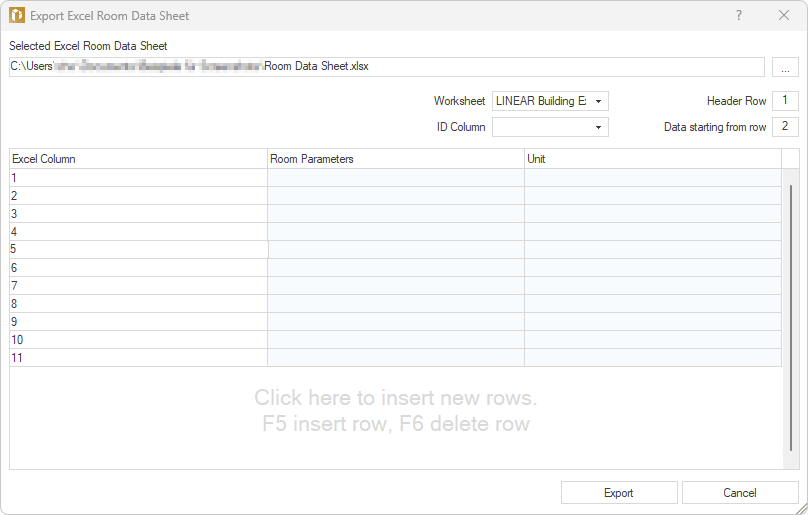
.When you export the building data for a project for the first time, a file explorer opens where you can select an existing Excel file or create an Excel file for export by entering a name.
-
Check the settings for the Worksheet, ID Column, Header Row, and Data From Row, and make any necessary changes.
-
Click in a cell in the Room Parameters column, and then click
 . A context menu opens where you can select a room parameter for export.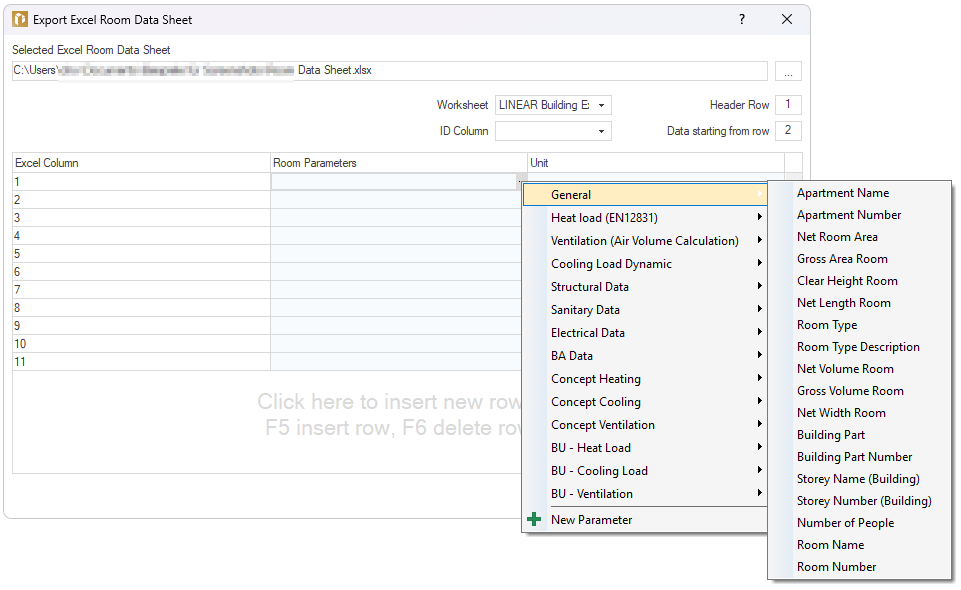
-
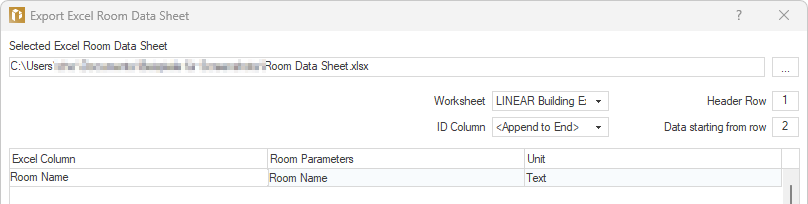
In the Excel Column column, enter a name that you want to use as the column name in the Excel spreadsheet.
-
Repeat steps 3 to 4 to select additional room parameters for export.
-
Click Export to export the building data.
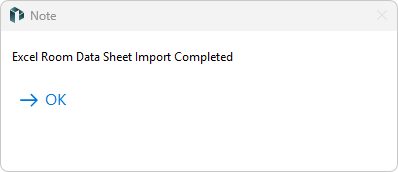
The building data was exported to the selected or newly created Excel Room Data Sheet in accordance with the settings made.