-
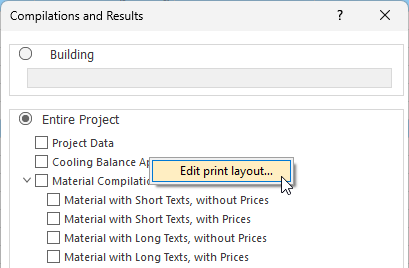
In the Reports and Results dialog box, under Entire Project, right-click a print topic.
-
In the context menu that appears, select Edit Print Layout....
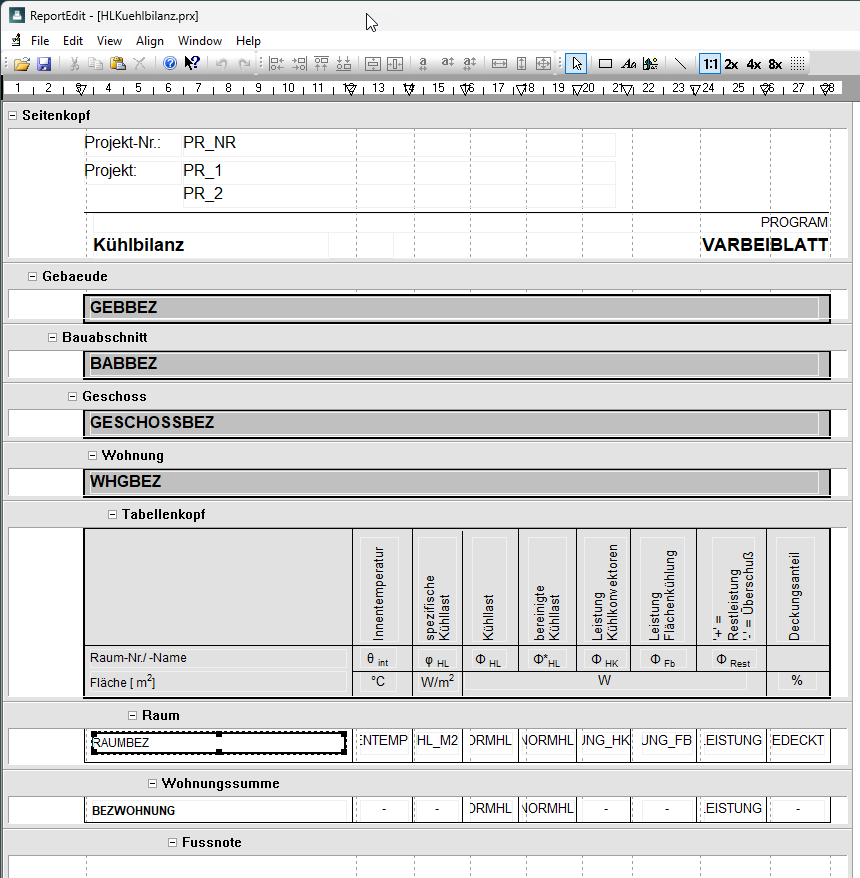
The LINEAR ReportEdit program opens with the selected print template.
-
Select a room parameter that you want to add to or modify, or use the
 button to insert a text field for a parameter.
-
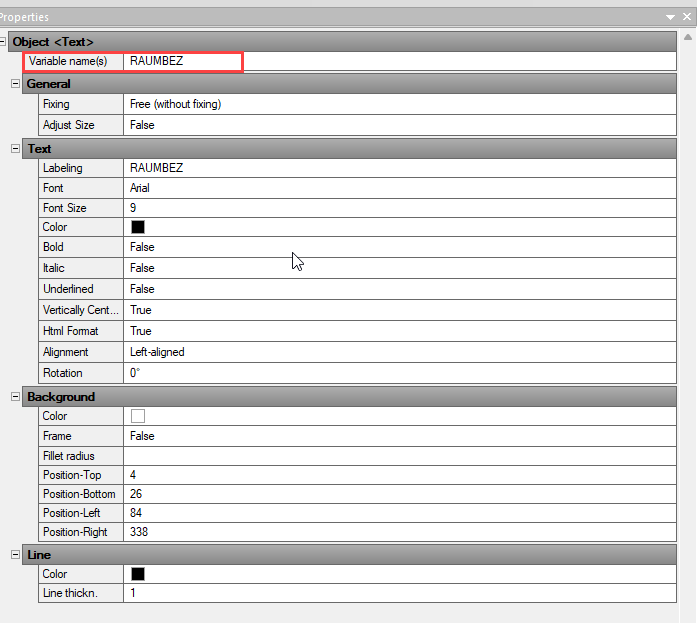
The Properties panel opens on the right.
-
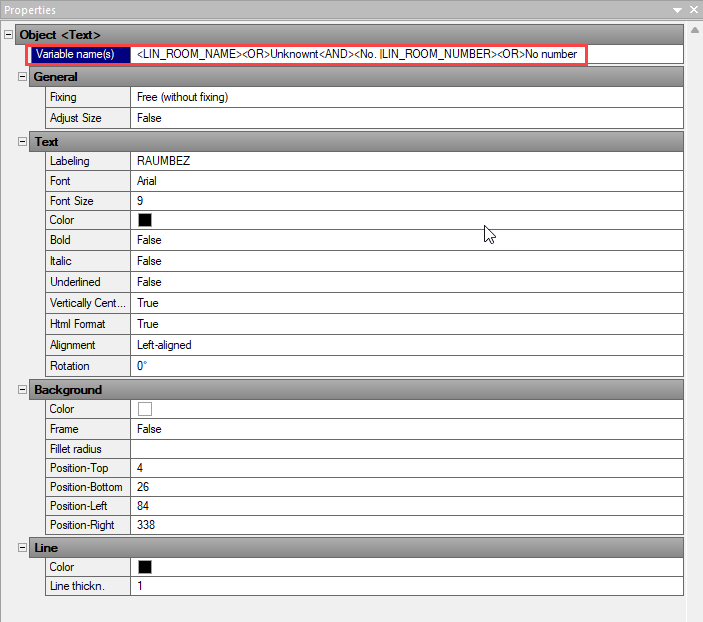
Click in the Variable Name(s) field and enter the desired variable(s) and, if applicable, the operators for their logical connection (<AND> or <OR>).
-
Save the print template.
Review the changes by selecting the modified print template in LINEAR Building and, for example, exporting it to a PDF file.