-
Select a radiator in the Building structure.
In the schematic view, the symbol of the radiator is highlighted in color. The symbols of the radiators in the scheme are labeled with the room number and the capacity of the radiator.
-
Position the cursor on a radiator symbol of the schematic view.
A tooltip with the basic data of the radiator appears.
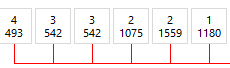
Data in tooltip
- Room number
- Room name
- Radiator model
- Radiator dimensions
- Radiator capacity
-
Click a radiator symbol in the schematic view.
The following context menu opens, in which the connection variant of the radiator is highlighted in color:
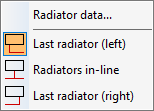
-
Select the item Radiator data... in the context menu.
The Connection dialog with all important information regarding the radiator connection opens and you can make adjustments.
You have checked all radiator data accessible via the scheme generator and adjusted the data if necessary.