-
Click on
 Data Type-Specific Value Input in the toolbar.
The dialog Value Input opens.
-
Click on the three-dot button
 to the right of the field for the Input Parameters.
A context menu opens in which the available parameters are grouped into categories and property sets.
-
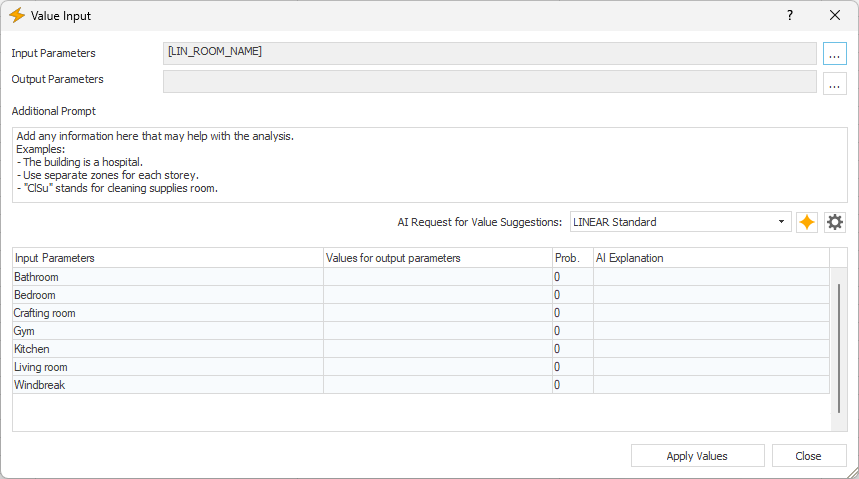
Select one or more Input Parameters based on which an output parameter should automatically be assigned a value—for example, the room name—and, if necessary, deselect any unnecessary parameters from the context menu.
The selected parameter is transferred to the Input Parameter field. The Input Parameter column displays the values of these parameters.
-
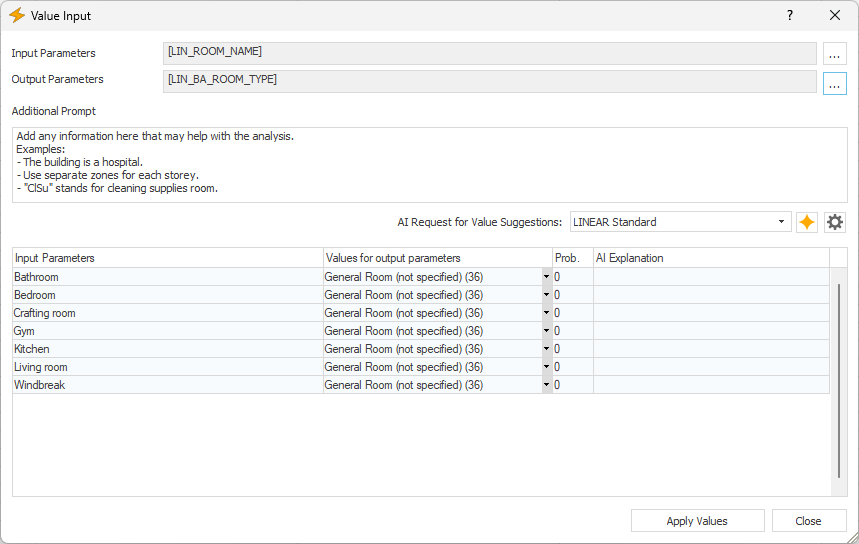
Select an Output Parameter in the same way as you selected an Input Parameter.
The selected parameter is transferred to the Output Parameter field. Any existing values for the Output Parameter are displayed in the Values for Output Parameter column and otherwise listed with the value zero.
-
If necessary, enter an additional prompt to specify the input.
-
From the drop-down list next to AI Request for Value Suggestions, select an AI configuration for the AI request.
-
Click
 Start AI Request to request suggestions for the output parameter values from the AI.
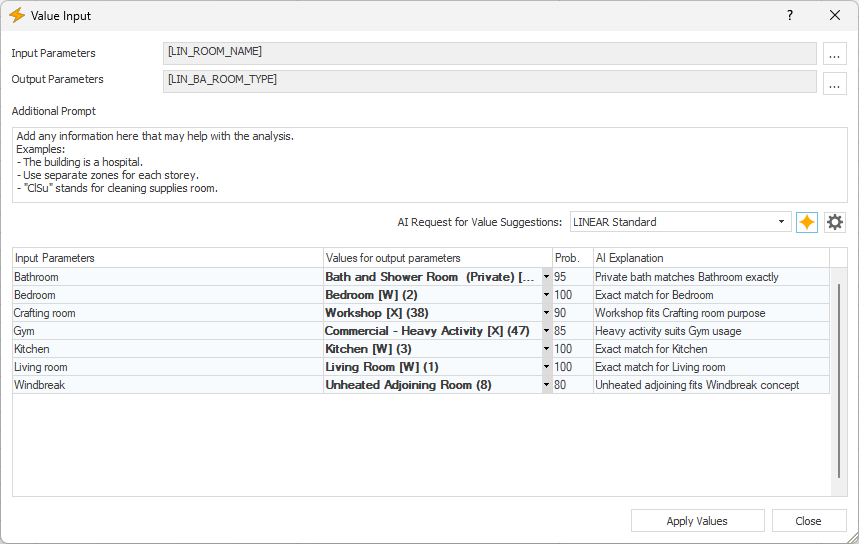
The results of the AI query are displayed in the Values for Output Parameter column. In addition, the Prob. column provides a probability of the answer's accuracy as a percentage, and the AI Explanation column provides an explanation for the AI's answer.
-
In the Values for Output Parameter column, review the results of the AI query, taking into account the information in the Prob. and AI Explanation columns.
-
Make any necessary corrections or changes, as in the case of the gym in this example, where the AI was unable to clearly identify the room type.
-
Click Apply Values.
The values have been assigned to the output parameter and transferred to the room data sheet.