-
In the Information levels area, select the information level to be configured.
The settings for the selected information level are displayed on the right-hand side of the dialog.
-
If necessary, adjust the Name, Description and the value for Basic level LOIN.
-
Click on
 New deviating specification to add a deviating specification for properties of certain element classes.
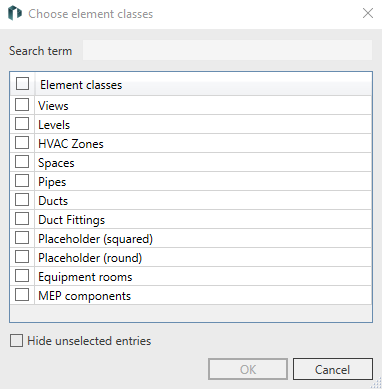
The Select Element classes dialog opens.
-
Select one or more element classes by clicking in the checkboxes and confirm your selection by clicking OK.
The dialog closes and the selected element class is transferred to the Alternative specification list. If several element classes are selected, these are added as a combined entry.
-
In the LOI column, adjust the information level from which the properties from the element class are to be displayed in the LINEAR Properties dialog.
-
Close the Element classes and property sets dialog by clicking OK.
-
Switch to the LINEAR Properties dialog.
-
Select the appropriate information level in the top drop-down list to display only the properties with the corresponding LOI values when selecting a model element.
You have created an information level, created any deviating specifications and used them in the LINEAR Properties dialog to filter the display of data according to the information level (planning phase).