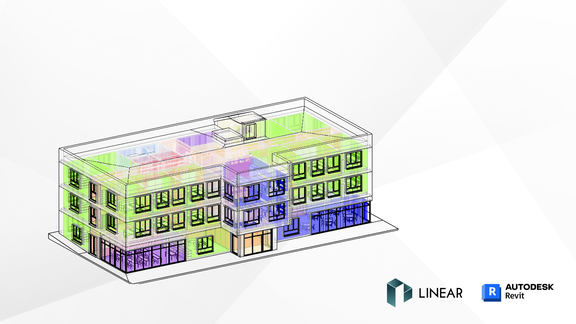
What did Autodesk change – and why?
So-called system zones, which have their own type system, have existed since Revit 2022. In Revit 2027, they completely replace the traditional zones.
If you open a project from Revit 2026 or older in Revit 2027, Revit automatically converts the available HVAC zones into a new element type with the same name, which is internally based on system zones. This may sound like a smooth migration, but if you take a closer look, it turns out to be a lifeline for existing data rather than a viable solution for the future.
The four difficulties of the Zones in Revit 2027
1. HVAC zones are becoming obsolete
HVAC zones cannot be newly created via the user interface or the programming interface - you can only edit converted, already available ones. So if you're designing your project from scratch in Revit 2027, you won't be able to use HVAC zones. They have been designed as a temporary solution from the start.
2. MEP Spaces may be located in several zones of the same type
An MEP space can be assigned to several system zones of the same type at the same time. This sounds flexible, but in practice it leads to ambiguous situations and makes a clean evaluation almost impossible.
3. Temperatures are type parameters - not instance parameters
Previously, target temperatures could be set directly on the zone instance. Heating and cooling limit values are type parameters in system zones. This means: A separate type is required for each temperature combination. When converting, Revit creates a corresponding number of types (HVAC zone 1, HVAC zone 2, ... HVAC zone N) - depending on how many different temperature profiles were available in the project.
4. Zones are level-dependent - and that makes editing a problem
HVAC zones and generic zones are linked to a specific level. Although the conversion process adopts the MEP space-zone assignments exactly as they are, the following applies when editing the data afterwards: A zone only accepts MEP spaces on the same level. This means that existing assignments can be adopted, but can hardly be flexibly adapted - for example in the case of zones spanning several storeys.
Our conclusion: This doesn’t work for us
Unfortunately, the new Zone system does not fulfill any of the requirements we have previously placed on zones. So we asked ourselves: What were we actually trying to achieve with the zones – and how can we get there by other means?
Here's what zones were good for: Quickly assigning equal attributes to a group of MEP spaces - including temperatures and other Revit-specific parametrics.
How this is done now: Key lists. Since Revit 2022, they have become significantly more powerful than before and are ideal for systematically defining not only temperatures but also other room-specific parameters, and for assigning them to rooms in batches using key assignments. In the past, this would not have been very useful due to the lack of support for shared parameters - today it is the better solution.
What happens when I open an existing project in Revit 2027?
The following applies to LINEAR users: Everything looks the same at first. The zoning data will be converted into a suitable key list, and the building analysis process will continue using all existing data.
The following happens in the background:
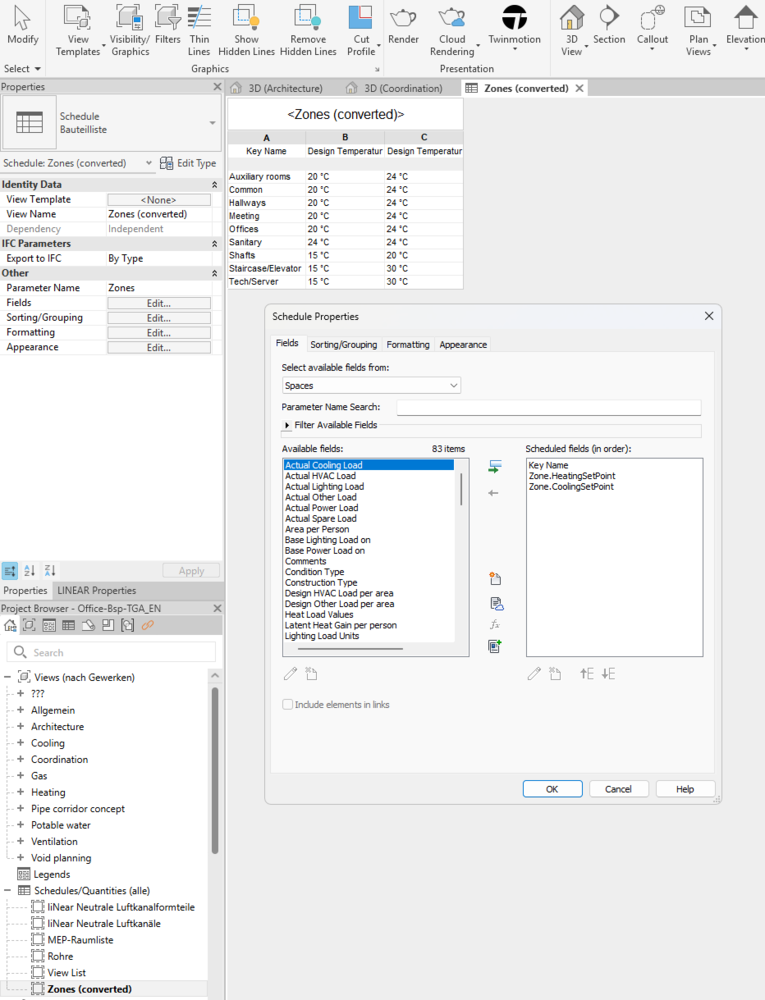
- Create key list - A new key list with the name "Zones (converted)" and the key parameter name "Zone" is created. This can then be customized further as desired.
- Add new parameters - Two new parameters are created: Zone.HeatingSetPoint and Zone.CoolingSetPoint.
- Convert zones to keys - All existing zones will be converted to keys, including the zone name and the corresponding temperatures.
- Assign keys to spaces - Each MEP space receives the appropriate key according to its previous zone assignment.
- Adjust Parameter Manager - The zone temperatures are mapped to the corresponding fields in the key list. Depending on the priority, the room temperature can be set individually or is read-only because it is determined by the key (formerly: zone).
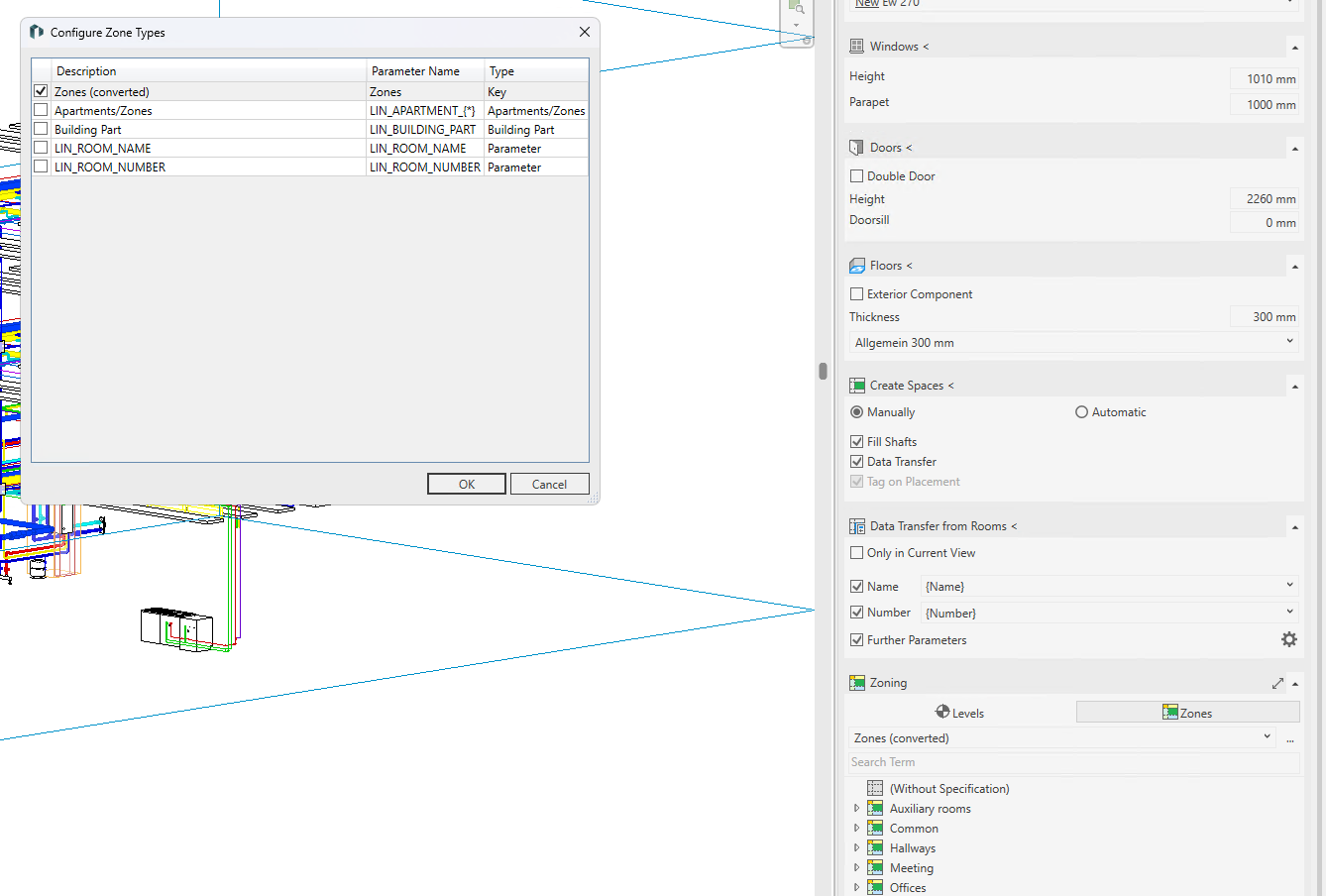
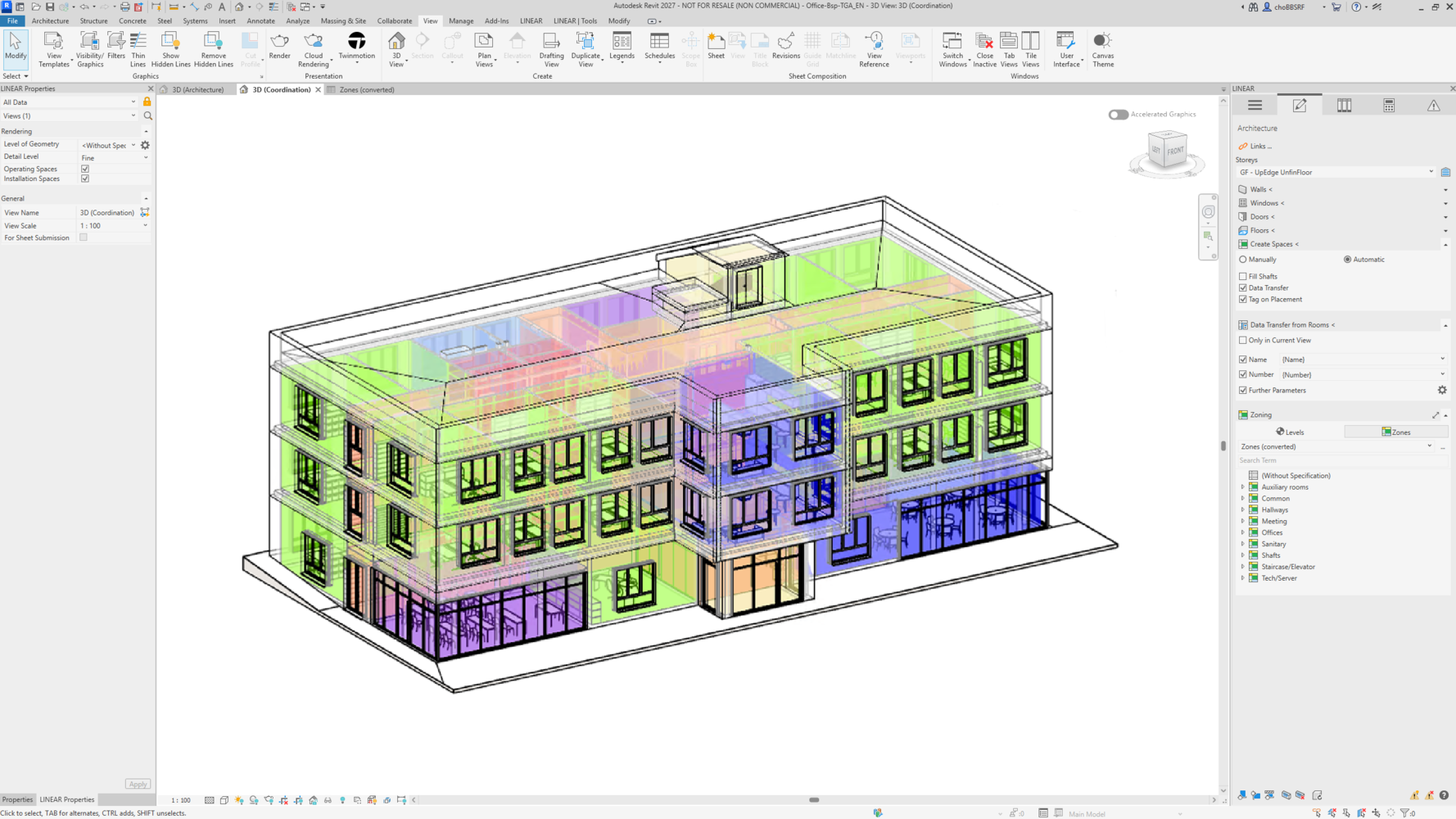
- Insert new zone type - To ensure that the converted “zones” remain usable directly in the zoning UI, a new area type based on the new key parameter is added.
Notifications and special cases
- Existing projects vs. new projects: The conversion described applies exclusively to existing projects. For new projects in LINEAR 26.1, nothing is currently created automatically – you start from scratch and set everything up exactly as you want it. We are working on offering a LINEAR-style setup guide for using smart key lists in the future.
- The standard zone is not converted: Revit's built-in standard zone is not usable for us in Revit 2027. If all rooms in a project are located in this standard zone, no conversion will take place. The same applies here as for new projects.
If you have any questions about migrating your projects or the new handling of key lists, our support team will be happy to help.