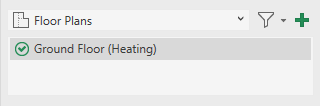
-
Select the desired view type from the dropdown list of the appropriate views area.
If the project does not yet contain a view of the selected view type, the list is empty.
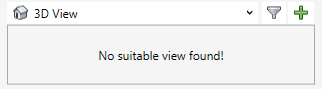
-
Click on
 Create view.
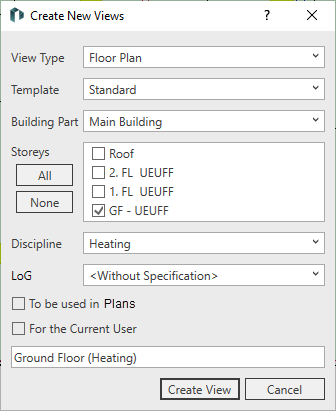
The Create new views dialog opens.
-
Select the desired template to be used for creating the view.
-
Select the desired Building Part.
-
Activate under Storey all storey for which you would like to create a view.
-
Select the desired Discipline.
-
Select a model development level for the view as LoG.
-
If you want to use the view in sheets and show or hide it in the relevant views using the view filter, enable the Should Be Used In Sheets option.
-
If you want to mark the view as your own view, select the For Current User option. This allows you to filter your views later.
-
Click Create view.
The view is created and used as the current view. It is marked with the  Suitable symbol. If you switch to the Construction tab you will find all construction functions for the selected discipline there.