-
Click on Excel Import in the Interoperability area.
-
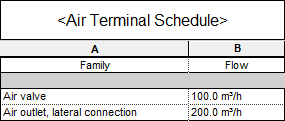
Select the XLSX file to import and click Open.
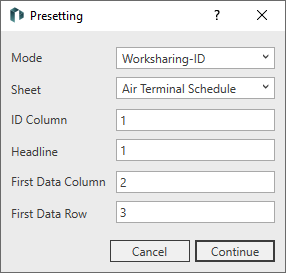
The dialog Presettings opens.
-
Select the mode in which the component list was previously exported.
-
Select the worksheet to be imported.
-
Click Next.
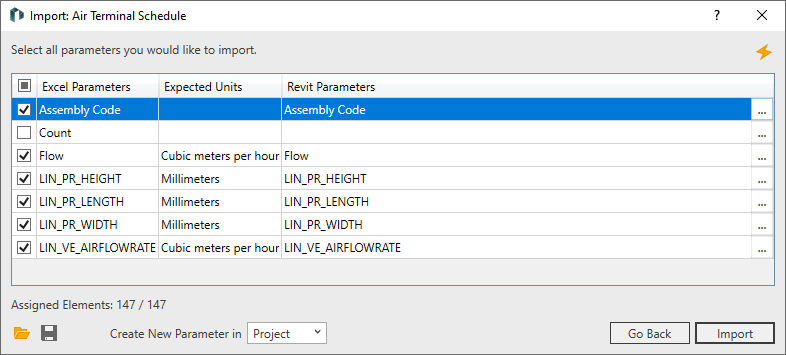
The dialog Import: … opens.
-
To subsequently link all other Excel parameters with Revit parameters, you can
- try an automatic assignment of Excel parameters to Revit parameters by clicking on
 , or
, or - click on
 in the corresponding row of the Select Parameters dialog to make a manual assignment.
- try an automatic assignment of Excel parameters to Revit parameters by clicking on
-
Select the parameters that you want to import from the Excel file.
-
Save the current configuration for re-use by clicking on
 .
. -
Click Import.
The values of the parameters from the Excel worksheet were imported.