-
Click on Excel Export in the Interoperability area.
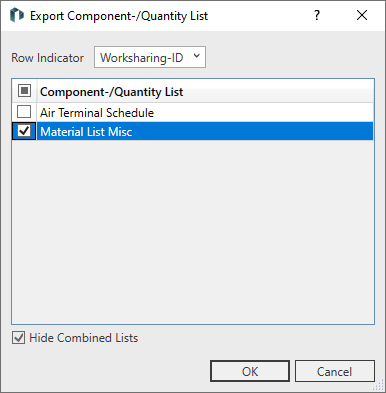
The dialog Export Component / Quantity Lists opens.
-
Select Worksharing-ID as row identification.
-
Activate the check boxes of the component list you want to export and click OK.
-
Select a storage location and save the file.
-
Click on the message Export successful that appears to open the exported file directly in the spreadsheet program.
The exported Excel file contains all elements of the component list. If you have exported several lists, you will find each list in a separate Excel worksheet.