Use this dialog to export component and quantity lists to an Excel file. The dialog shows all component and quantity lists of the current Revit project.
You are here:
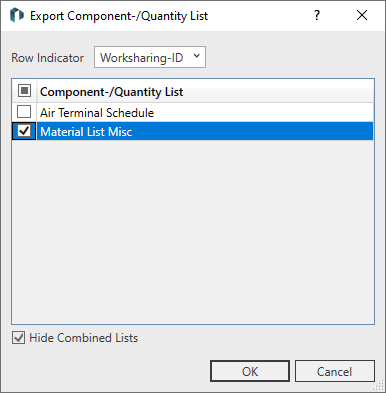
Row Indicator
Defines whether and how the rows of the lists are marked in the exported Excel file. You can mark the rows with an Element-ID or with a Worksharing-ID . Exporting, editing and then re-importing a list allows the rows of the list to be reassigned to the elements in the model by marking them with IDs. The row indicator can be found in the first column of each worksheet in the exported file. The first column with the IDs is hidden by default in the Excel worksheets.
|
Row indicator |
Description |
|---|---|
|
None |
Assigns no ID to the rows of the list. In case of a later import the parameters have to be assigned manually. An import without IDs is only useful with room lists. |
|
Element-ID |
Marks the rows of the list with the Element-ID in the first column. |
|
Worksharing-ID |
Marks the rows of the list with the Worksharing-ID in the first column of the worksheets. Worksharing-IDs are constant IDs that always remain the same. |
Component / quantity list
Select the components and quantity lists you would like to export. A file is created in which the selected lists are available as individual worksheets.
Hide combined lists
Enabled: The overview shows only single component lists. Single component lists are lists which have the Itemize each copy setting activated in the Sorting/Grouping Properties.
Remember that the following applies to the export of single component lists:
-
Dimension units are removed during export.
-
The exported file contains information in the column headers with information about the parameter and unit type. This information is required when the edited file is imported back into Revit.