-
Click in the column Usage Profile on
 and select Manage Usage Profiles in the appearing menu.
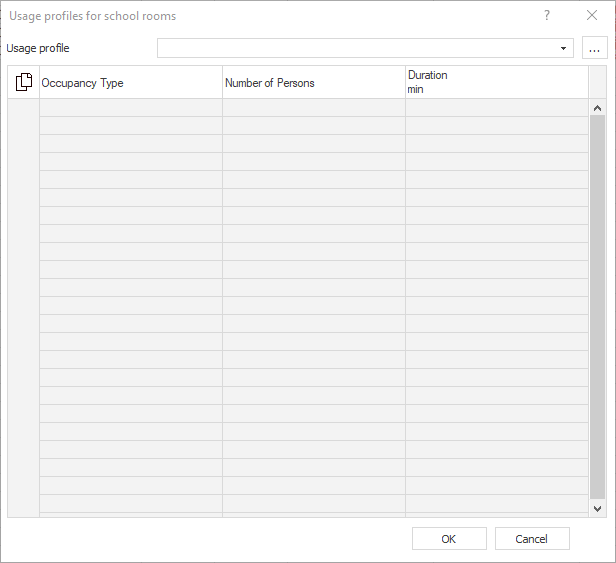
The Usage Profiles for School Rooms dialog opens.
-
Click on
 and select Add from the appearing menu.
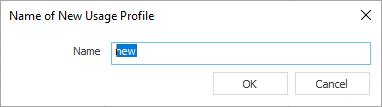
The dialog Name of the New Usage Profile opens.
-
Enter the name for the usage profile in the Name input field and click OK.
-
The usage profile is created and opened for editing.
-
Click in the table and select Standard Occupancy in the appearing menu.
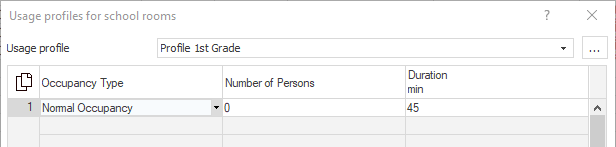
A row is added to the table for the first time interval of the usage profile, in which the first teaching unit is defined.
-
Enter the number of people who are present in the room during the session in the column Number Of People and adjust the Duration of the session if necessary.
-
Repeat steps 5 and 6 to add further time intervals for lessons or breaks to the usage profile. Select Break Occupancy instead of Normal Occupancy when adding new rows to define a time interval for a break.
-
After defining all time intervals of the usage profile, close the dialog with OK or create additional usage profiles if necessary.
You have created usage profiles for air volume determination with the calculation method VDI 6040 Schools (09-2015).