-
Select the elements for which you want to create a legend.
-
Click Legend <.
The Legend dialog opens.
-
Specify the headline, number of columns and text styles for the legend.
-
On the Select tab, under Types, System Classes, and Cross Sections, select all elements that should be listed in the legend.
-
Switch to the Arrange and rename tab.
-
Adjust the order of the elements by selecting the corresponding line and moving it with
 or
or  in the table.
 -
If necessary, change the description of an element by double-clicking in the Description column.
-
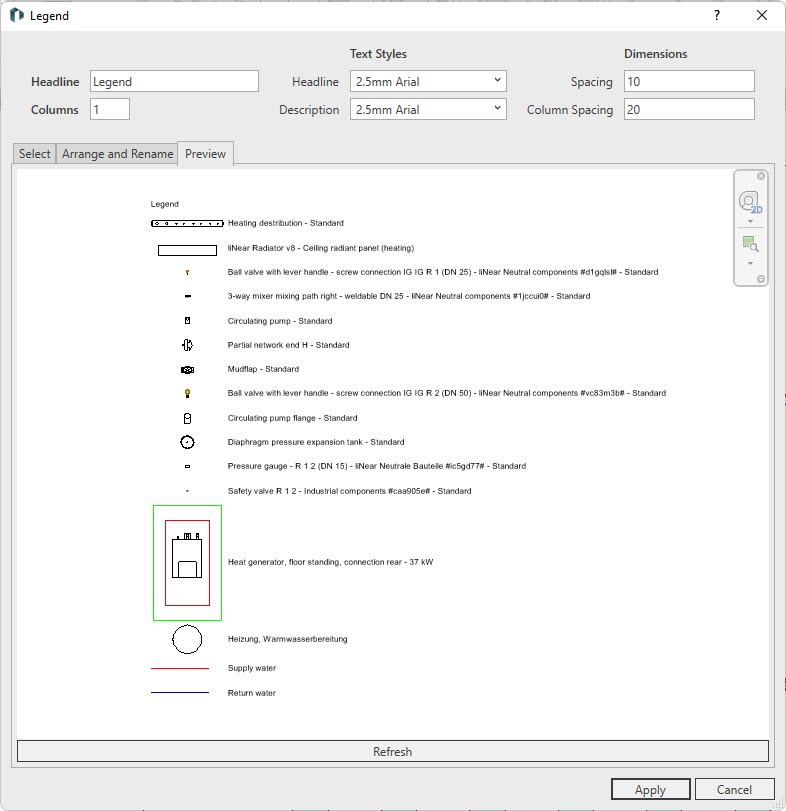
Switch to the Preview tab to preview the legend.
-
Click Refresh to update the legend preview based on the settings.
-
Click Apply.
The legend is created and can be placed on plans from the Revit-Project Browser.