-
Click on
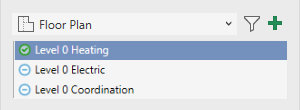
 at the bottom of the Project tab and select the desired view type from the drop-down list that appears, e.g.
  Floor plans.
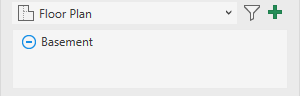
All views of the selected type are displayed on the bottom panel. Unassigned views are marked with the symbol
 .
. -
Select the view you want to set up.
-
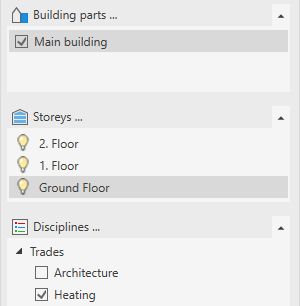
Select the building part that is included in this view and also check the checkbox for this building part.
-
If it is a section view or a 3D view, use the storey buttons
 to display the storeys that should be included in the view.
 -
Select the storey that the view should include.
-
Activate the check boxes of the disciplines to be displayed in the view.
-
Select the discipline whose content and features should be available to you on the Design, Library, and Analysis tabs.
In the area of appropriate views, the selected view is marked with the symbol  Matching, and you can now use the LINEAR view control.