-
Open the context menu in the Manufacturer row via the function button
 and select Create Entry.
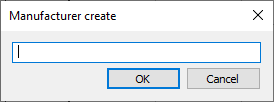
The Create Manufacturer dialog opens.
-
Enter a manufacturer name and confirm the entries with OK.
-
In the Model Series row, open the context menu via the function button
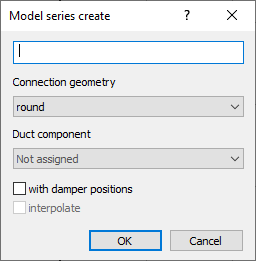
and select Create Entry.The Create Model Series dialog opens.
-
Enter a name for the model series and select a Connection Geometry from the drop-down list.
-
In the drop-down list Duct Component, select a component type.
-
Select the option with Damper Positions, if necessary combined with Interpolate.
-
In the Nominal Diameter row, open the context menu via the function button
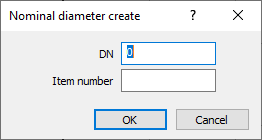
and select Create Entry.The Create Nominal Diameter dialog opens.
-
Depending on the selected connection geometry, enter a nominal diameter (round pipe) or two values for the side lengths a and b (rectangular duct).
-
Enter an item number and confirm the entries with OK.
-
If you have previously selected the option with Damper Positions, open the context menu in the row Damper Position via the function button
and select Create Entry. -
Enter the data for the volume flow V and the pressure loss Δp in the table.
The entered data is displayed as a pressure loss curve in the curve diagram.
You have created a component dataset for a ventilation component with curve data. The data can now be assigned to ventilation components in the Technical Data dialog and is available in the Duct Components dialog.