-
Click Search & Replace
 in the symbol bar.
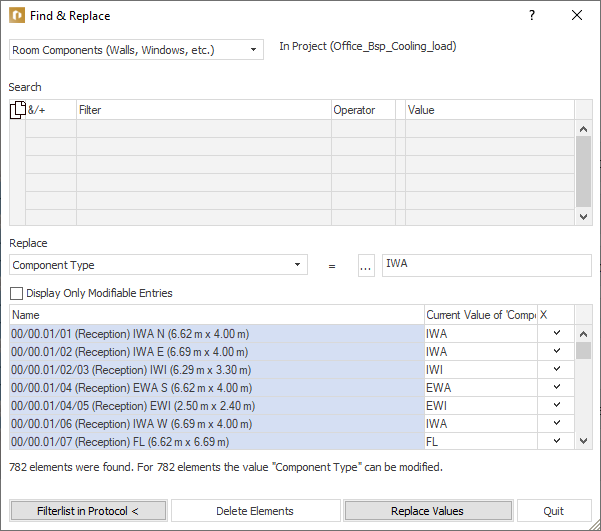
The dialog Search & Replace opens.
-
Select a category from the drop-down list above the table.
-
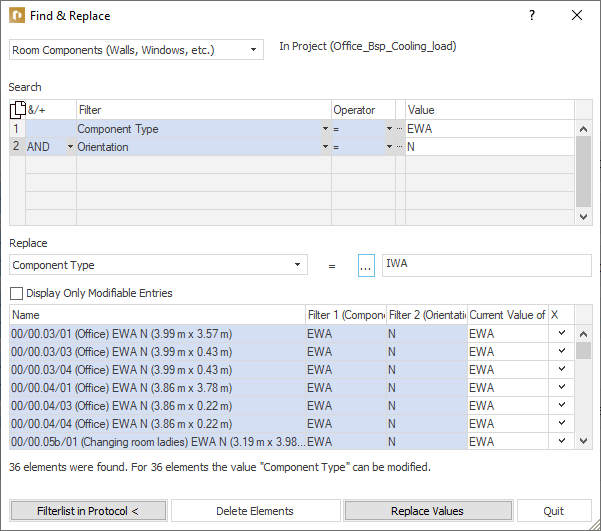
Click in the Search area in the table and select a Filter.
-
Select an Operator.
-
Select by clicking
 a Value.
 -
If necessary, click in the next line and select in the &/+ column whether you would like to link the second filter with AND or OR.
You can create as many filters as you like. With F6 you can delete lines, with F5 you can insert new lines above the currently selected line.
-
Under Replace, select the component data type you would like to replace from the drop-down list.
-
Select after clicking
 the new value or enter the value manually.
 -
In the list of filtered components in the X column, deactivate all components that should not be included in the replacement process.
-
Click Replace values.
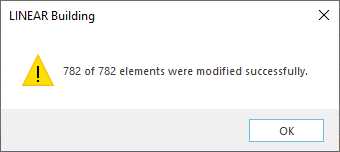
The operation is confirmed with Number of modified components and the data of the components are adjusted.