-
Click on the button to select the geographical project location.
The dialog Location and Property opens.
-
Select on the Location tab by choosing one of the options from the dropdown list Set Location By: whether you want to set the Project location via an Internet Map Service or the Standard City List.
Depending on the selection, the user interface of the dialog for selecting a location changes.
-
If your project contains a modeled plot with shading-relevant elements, select a plot on the Open Spaces, Outdoor Facilities tab and set the Angle between project north and true north.
-
Confirm the details in the Location and Property dialog with OK.
-
Make the configurations for the Calculation Period in the Shading Calculation area.
-
Click on the Shading Calculation ... button in the Control Board.
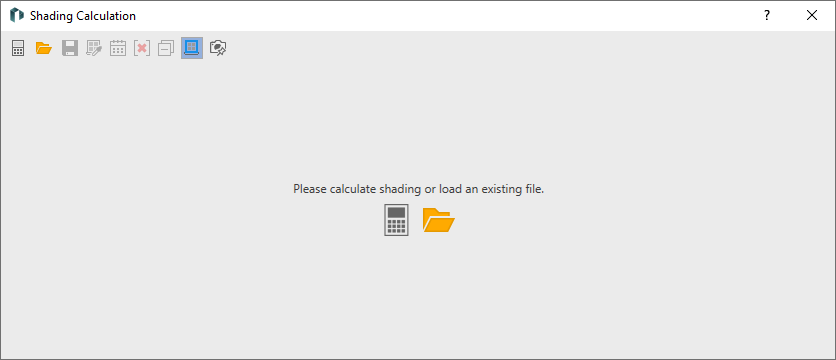
The dialog Shading Calculation opens.
-
Click on the Recalculate Shading
 button .
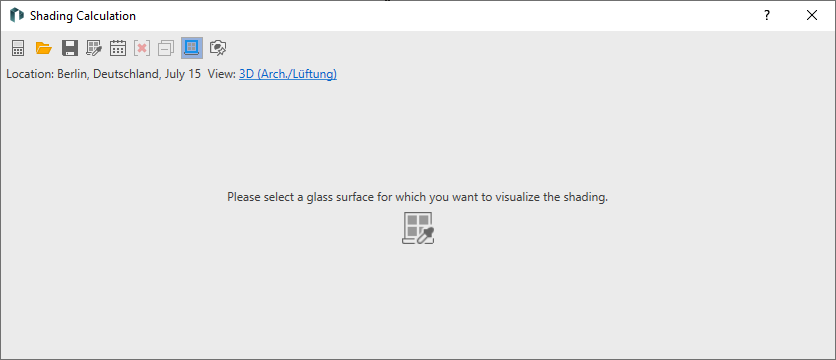
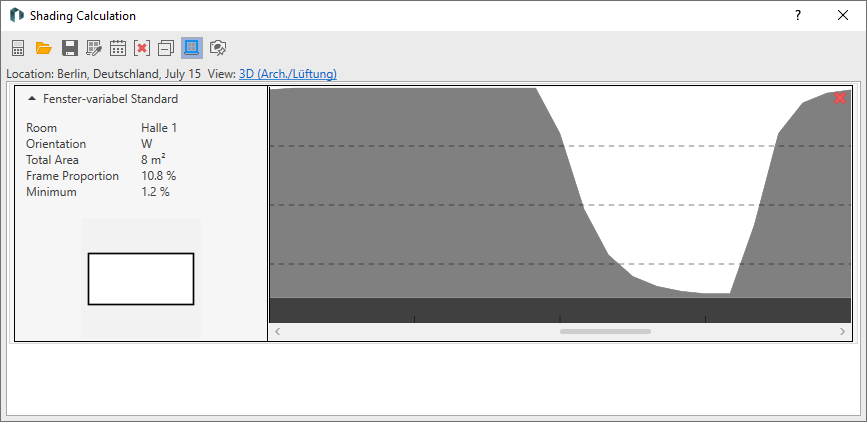
The shading for the model has been calculated and you can select glass surfaces for displaying the shading curves.
-
Click Add Window
 .
. -
Click to select the desired window area in your model.
-
Click on Save
 to save the shading data in a LINEAR EAC file for use in LINEAR Building.
The file explorer opens.
-
Select a file location, enter a file name and click Save.
You have calculated the shading data for all windows in the building model and saved it in a LINEAR EAC file. You can now use the LINEAR EAC file in LINEAR Building to support the calculation of the dynamic cooling load.