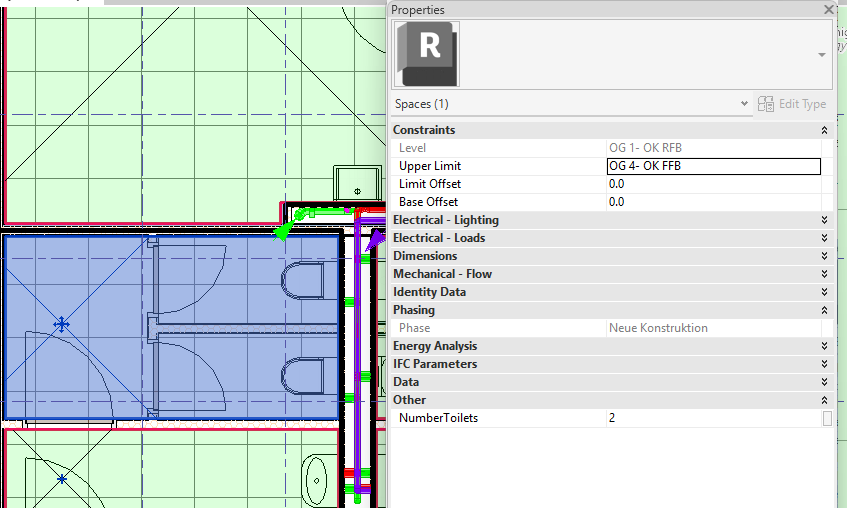
-
In the Target Parameters section, click
 Add New Target Parameter.
The Select parameters: dialog: MEP Rooms / Number opens.
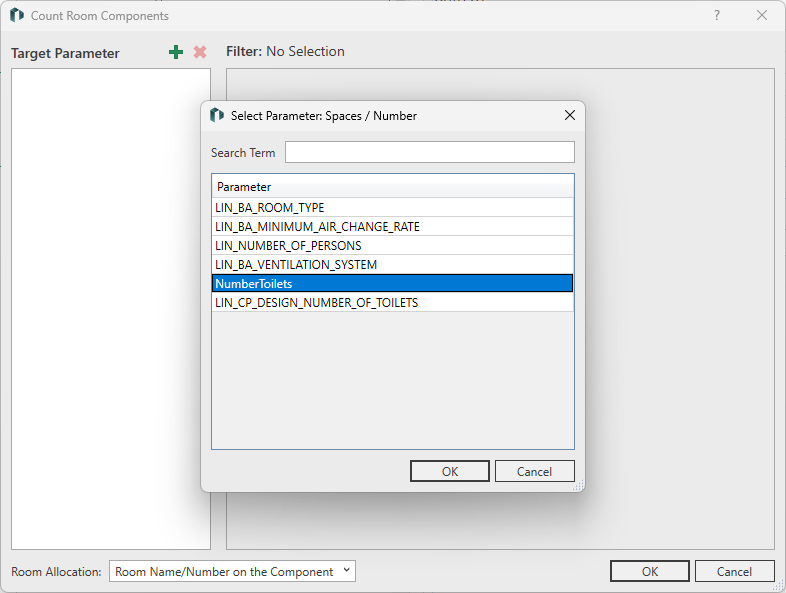
-
Select a parameter from the list and confirm your selection by clicking OK.
The dialog closes, and the parameter is added to the list of target parameters.
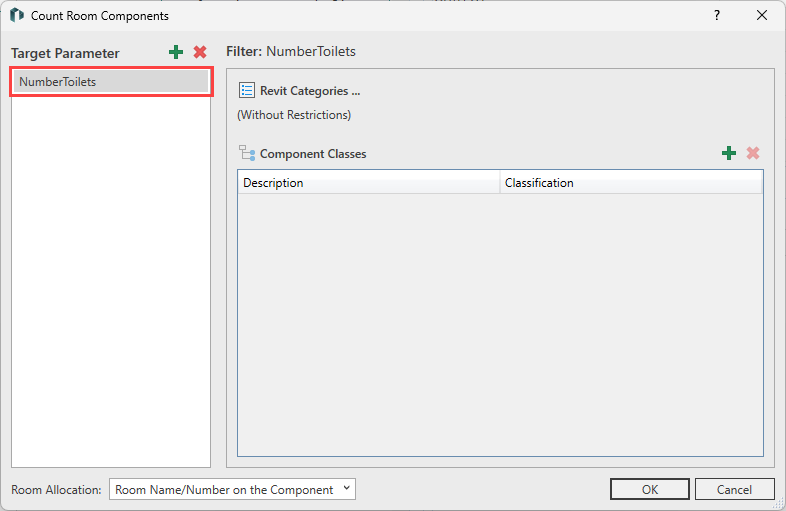
-
In the area Filter:, click
 Revit Categories....
The Select Categories dialog opens.
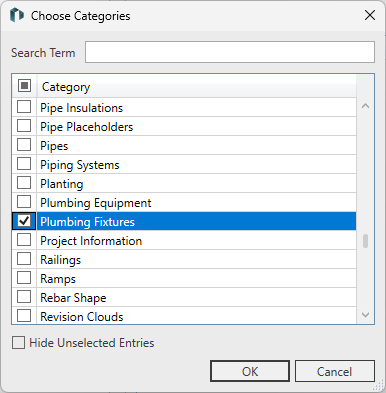
-
Select the categories from the list of Revit categories that match the components to be counted, and confirm by clicking OK.
The dialog closes, and the selected categories are listed in the area Revit Categories....
-
Click
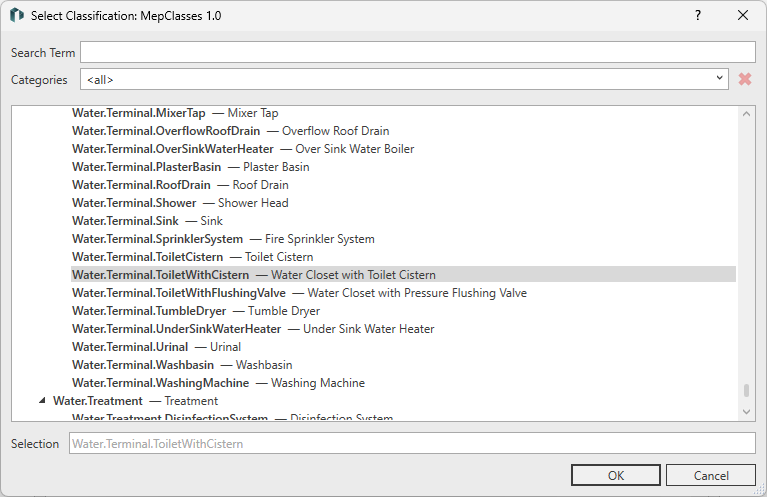
Add Component Class above the table for component classes.The dialog Select Classification: MepClasses 1.0 opens.
-
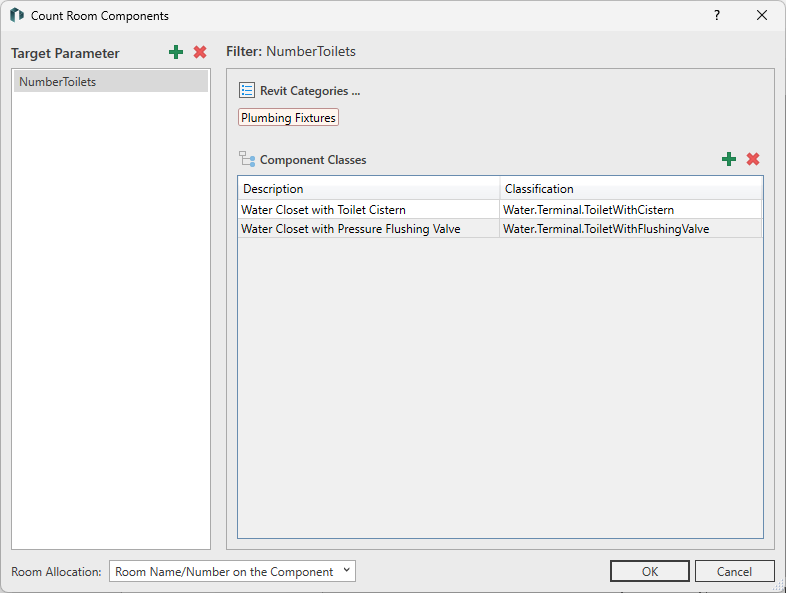
Repeat the previous step to select additional component classes, such as Water.Terminal.ToiletWithFlushingValve in addition to Water.Terminal.ToiletWithCistern.
-
Select the classifications to which the components to be counted belong, and confirm your selection by clicking OK.
The dialog closes and the selected component class is added to the table.
-
In the Room Assignment: drop-down list, choose between the modes Room Name/Room Number on Component and Revit Calculation to assign components to a room.
-
Close the dialog with a click on OK.
The target parameter(s) was/were saved in the space, and the components mapped to the target parameter were counted. The number of room components entered in the parameter is now displayed in the Properties window of Revit.