-
Click into a free row of the table under User-defined entries to create a new case of application for the material settings.
-
In the Name column, enter a name for the case of application.
-
In the Pipes column, click
 to select a material.
A context menu opens.

-
In the context menu, click Select....
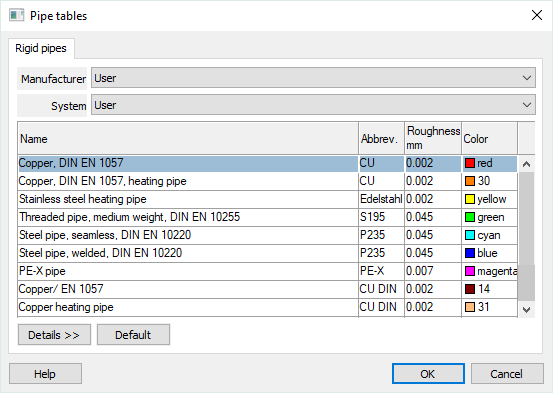
The Pipe tables dialog opens.
-
Select the desired Manufacturer and the corresponding System from the drop-down lists.
-
If necessary, select the desired versions of the system in the table above.
-
If necessary, deactivate nominal diameters that are not required for dimensioning by clicking on the checkboxes in the corresponding rows in the Active column of the lower table.
-
Close the dialog with OK.
-
If necessary, repeat the steps for material selection for Hoses and Insulation Material.
-
Close the Material settings dialog with OK to save the settings in the project.
The custom material combination has been created and can be assigned manually.