-
Click on Import Building from Excel Room Data Sheet in the Main Menu
 .
.The Select Template dialog opens.
-
Select the desired template and click OK.
The dialog Import Excel Room Data Sheet opens.
-
Click on
 and select the desired Excel file.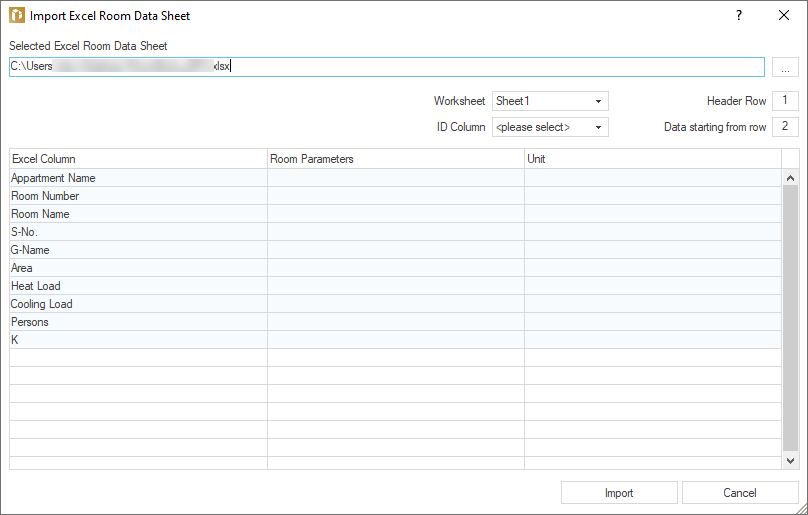
-
For the selected Excel room data sheet, configure the settings for Worksheet, ID Column, Row Header, and Data from Row.
-
In the Room Parameter column, click on
 in the respective rows to assign the LINEAR room parameters corresponding to the columns of the room data sheet.
 -
If you need new room parameters for assigning the columns of the Excel room data sheet, click on
in the respective rows, select New Parameter, specify the name and Unit ( ) in the dialog that appears, and click OK.
The new parameters are created, assigned, and saved in the project during import. After import, the new room parameters are available in the Room Data Sheet module.
-
Click on Import after the assignment is complete.
A message confirming the successful import is displayed. The data from the Excel room data sheet has been transferred to the assigned room parameters and a building structure has been created based on the data. All transferred data is available in the corresponding property sets of the Room Data Sheet module.