Details on "Element Lists"
Information on the Element Lists dialog.
You are here
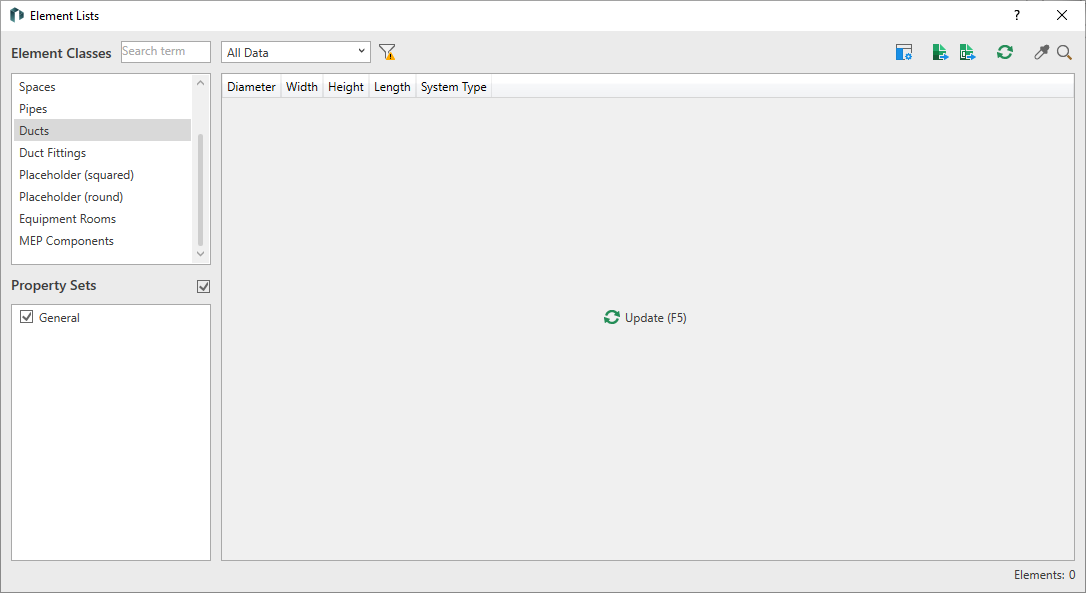
Toolbar
Selection of Information Level: Drop-down list for selecting the desired information level. You can refresh the view after selecting an information level by clicking on  . Elements that do not correspond to the selected information level are hidden.
 Only Display Faulty Elements - activated: Only shows elements with errors from the current list.
 Element Classes and Property Sets
Opens the Element Classes and Property Sets dialog, in which you can manage element classes with their property sets and the information levels (LOIN) of your project.
 Export Active Element List
Exports the currently displayed elements to an Excel file. If the current list contains faulty elements, you can specify in a query before the export whether you want to export all elements or only faulty elements, either with or without error messages. Error messages are stored as comments in the corresponding cell.
 Export Element List
Opens the Export Element Lists dialog, in which you can select which data is to be exported from all available element classes with their properties.
Update
Extracts the data of the activated property sets from the model and displays them in a table. The number of elements found is displayed at the bottom right below the table.
 Show Selected Element in Table
Highlights an element in the table that has been selected in the model. This is only possible if the element selected in the model is part of the current list.
Highlight Related Element in Model
Highlights the element in the model that is currently selected in the table.
Element Classes
Search field: Filters the list of element classes based on the entered search term. You can also enter parts of the term. Upper and lower case is not considered.
List of all element classes created in the project.
Property Sets
List of all property sets that are linked to the selected element class. Activate all property sets that you want to display.
Table
Displays all elements of the model that fulfill the selection criteria under Element Classes and Property Sets. All parameters that have the ReadOnly attribute deactivated in the property set can be edited here. Changes to elements can be undone in the model with Ctrl+Z.
The display takes into account the construction phase visible in the current view and therefore does not list any components from other views or construction phases.