Aligning and Scaling a Drawing Underlay
Shows step-by-step how to align a loaded drawing underlay.
Before you begin
You want to rotate and/or scale the underlay for your drawing to the correct size.
Requirements:
You have loaded an underlay into your drawing.
Navigate to:
Procedure
- Click the button Align underlay <.
- Define a distance of known length which should be horizontal (in x-direction) after the rotation, for example along a wall.
- Click the start and end points in the drawing.
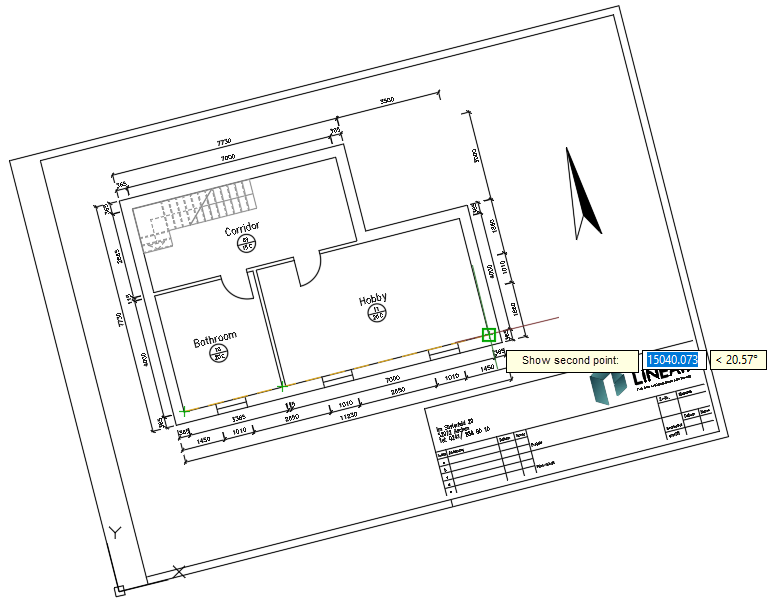
- Select a distance to be aligned horizontally
- Enter the distance between the two points (in drawing units) in the command line. Note: If you have inserted a drawing based on the unit meter, which is now to be scaled in mm, enter 11230 instead of 11,23.
- You will be asked whether the scaling in the y-direction (vertical) differs from the value you entered earlier for the x-direction (horizontal). In this way you can, for example, correct distortions of a scanned plan. Note: Scaling in the y-direction is only queried for documents in image formats (e.g. JPEG, PNG, GIF) and for PDF documents, not for DWG documents.
- Click Yes if the plan is distorted and this distortion is to be compensated.
- Define a line whose length is known to you and which should be aligned vertically (in y-direction) after rotation, for example a wall, by clicking the start and end points in the drawing.
- Enter the distance between the two points (in drawing units) in the command line.
Results
The external reference is then scaled and rotated in both directions and the underlay is aligned.